QuickBooks Reconciliation
Convert PDF Bank Statements for QuickBooks Reconciliation
Upload a statement PDF, download a balance-checked QBO or CSV file, and reconcile in QuickBooks Online or Desktop — without typing a single transaction by hand.

Why statements get stuck outside QuickBooks
QuickBooks can't read statement PDFs, so when the bank feed skips a few weeks — or disconnects entirely — the only complete record is the statement itself, and someone ends up typing it in by hand. That's where the familiar problems start:

- A reconciliation difference that won't go to zero, no matter how many times you re-check
- Transactions typed twice — once by hand, once by the bank feed
- Evenings lost to data entry instead of running the business
- Tax-time pressure because the books are months behind the bank
None of that is a bookkeeping problem — it's a file-format problem. Convert the statement into a file QuickBooks accepts, and the typing, the typos, and most reconciliation breaks go away with it.
How it works
- 1
Upload your statement PDF
Drag in the official PDF from your bank — Chase, Bank of America, Wells Fargo, Citi, and hundreds more. Scanned statements and multi-page files are supported.
- 2
Download the QBO file
We extract every transaction with its date, description, and amount, check the running balances, and build a QBO file (or CSV, QFX, OFX, Excel) with USD defaults for US QuickBooks accounts.
- 3
Import and reconcile
Upload the file in QuickBooks, categorize the transactions in the For review tab, and reconcile against the statement's closing balance. No typing, no transposed digits.
Importing into QuickBooks Online
- Go to Transactions → Bank transactions.
- Open the drop-down next to Link account and choose Upload a file.
- Select your QBO or CSV file and the account it belongs to.
- Review the transactions in the For review tab, categorize, and add them.
- Reconcile the month against the statement's closing balance.
Importing into QuickBooks Desktop
- Download the QBO export from Convert Statement.
- In QuickBooks Desktop, go to File → Utilities → Import → Web Connect Files.
- Select the .qbo file and the bank account it belongs to.
- Match and add the downloaded transactions in the Bank Feeds Center.
- Reconcile the month against the statement's closing balance.
Balance-Check: reconciliation starts before the import
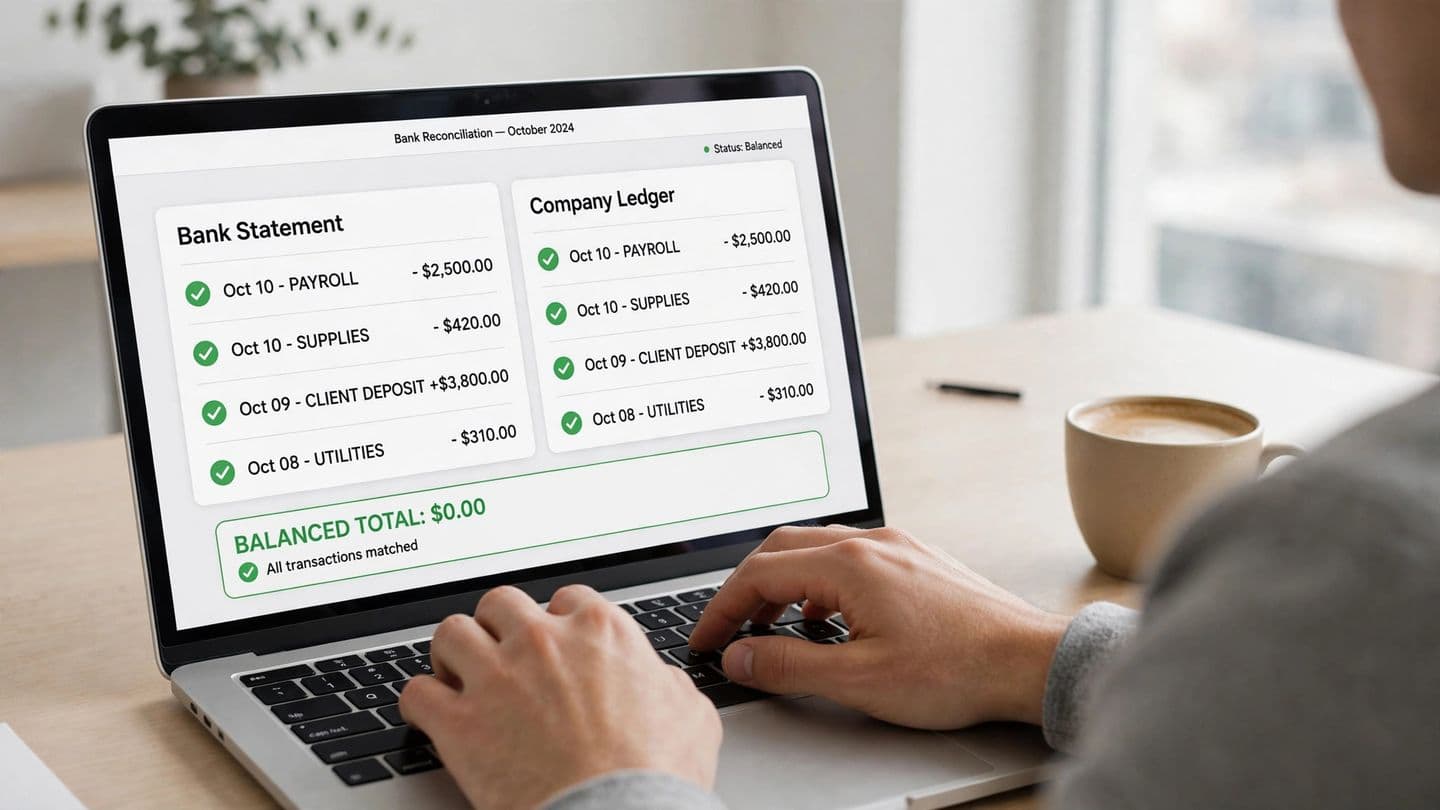
Most converters hand you a file and wish you luck. Ours proves itself first: before your download is ready, we walk the statement's own running balances and verify every step — previous balance plus transaction equals next balance. If the chain holds, your result shows a green confirmation. If a step doesn't add up, you get a warning instead, so a broken statement never becomes broken books.
Balance verified
Opening $2,000.00 → Closing $10,123.97 · 10 transactions · every running balance ties to the statement.
Actual result from our converter test with a sample Chase statement
- Balance-Check on every conversion — opening balance, every transaction, closing balance, verified and shown on your result.
- The statement's closing balance travels inside the QBO as its ledger balance, dated to the statement's real period — the exact target reconciliation aims at.
- Transaction IDs are derived from each transaction itself, so next month's file can never be mistaken for this month's — and re-importing the same file is recognized safely.
Export formats
QBO is the recommended format for QuickBooks, but every plan includes the formats below. Full walkthrough: how to import bank statements into QuickBooks, step by step.
Months behind? That's a cleanup, not a conversion
A converter fixes data entry, not a backlog. If your QuickBooks file has months of unreconciled accounts, duplicate transactions, and reports you can't trust at tax time, you need a cleanup: statements imported in order, everything categorized consistently, and each month re-reconciled until the balances match the bank. US firms typically charge four figures for this work.
Our assessment is free, and you get a fixed quote before anything starts. Contact us with the subject line “QuickBooks Cleanup” and tell us how many months and accounts you have. Want a quick self-check first? Run the free duplicate finder on your latest export.

Ready to convert?
Your first 8 pages are free — CSV and Excel included, no credit card required.
Start Free TrialQuickBooks Guides
Free QuickBooks tools
Less than one hour of a bookkeeper's time
Start free with CSV export. Move to Pro when you want one-click QBO files with the balance check for client books — 500 pages a month.
Free
Try it out — no card needed
- 8 pages free, forever
- CSV & Excel export
- Global banks support
- No credit card required
- ✕OFX / QFX export
- ✕Google Sheets
Basic
For light, occasional use
or $48/yr — save 20%
- 25 pages / month
- CSV & Excel export
- Global banks support
- Email support
- ✕Google Sheets
- ✕OFX / QFX export
Pro
Perfect for CAs & individuals
or $192/yr — save 20%
- 500 pages / month
- All export formats
- Google Sheets export
- Priority processing
- Smart Auto-Categorization (Beta)
- Pre-Export Analytics (Beta)
- Email support
- ✕API access
- ✕Team seats
Business
For CA firms & fintech teams
or $720/yr — save 20%
- 2,000 pages / month
- All export formats
- OCR for Scanned PDFs
- Direct Accounting Push (Coming Soon)
- Smart Auto-Categorization (Beta)
- Pre-Export Analytics (Beta)
- Secure Client Portal (Beta)
- API access
- 5 team seats
- Dedicated support
QuickBooks conversion questions
No. QuickBooks Online and Desktop cannot read statement PDFs. You first convert the PDF into a file QuickBooks accepts — QBO (Web Connect), QFX, OFX, or CSV — and then upload that file. That conversion is exactly what Convert Statement does.
Before your download is ready, we walk the statement's own running balances and verify every step: previous balance + transaction = next balance. If the chain holds, your result shows a green 'Balance verified' confirmation with the opening and closing balances — proof the exported file agrees with the bank before it ever reaches QuickBooks. If a step doesn't add up, you get a warning instead, so a broken statement never becomes broken books.
QBO is the safer default. Dates, amounts, and transaction types are already structured the way QuickBooks expects, the file carries the statement's closing balance as its ledger balance, and there is no column mapping to get wrong. CSV also works in QuickBooks Online through manual upload, but you must map the columns during import and use one consistent style — a single Amount column, or separate Money In / Money Out columns.
Go to Transactions → Bank transactions, open the drop-down next to Link account, and choose Upload a file. Select the QBO or CSV file, choose the bank or credit card account it belongs to, and confirm. Transactions appear in the For review tab — nothing is posted to your books until you categorize and add each one.
Yes — use the QBO export and import it through File → Utilities → Import → Web Connect Files in supported Desktop versions. If your Desktop version or bank setup blocks Web Connect imports, the CSV export plus the import steps in our guide will get the same data in.
Two safeguards prevent that. First, every transaction in our QBO file gets a unique ID derived from its date, description, and amount — so next month's statement can never be mistaken for this month's, and re-importing the same file is safely recognized by QuickBooks. Second, imported transactions sit in the For review tab, so you can catch and exclude anything that overlaps your live bank feed before it reaches your books.
The free plan includes 8 pages with CSV and Excel export — and QuickBooks Online accepts CSV through manual upload, so you can test the full flow for free. QBO, QFX, and OFX export are included on the Pro plan ($20/month, 500 pages), which is what most bookkeepers use for client work.
A reconciliation difference almost always comes from three things: a transaction that's missing, one that's duplicated, or one with the wrong date or amount. Work through it in that order — compare the statement against QuickBooks line by line for the mismatch amount, run your file through a duplicate check, and confirm the beginning balance matches last month's ending balance. Converting the PDF statement with the balance check on this page flags exactly where a statement's running balance breaks, which usually points straight at the bad entry.
No. Statements are processed in memory to build your export file and are not retained afterwards. We never sell or share your financial data.
Reconciliation is slow when transactions are typed by hand or imported with errors. This converter extracts every transaction from your PDF statement, verifies the running balances against the statement itself, and builds a QBO file with a unique ID for every transaction — so when you import it, QuickBooks matches entries against your bank feed cleanly and the reconciliation ties out to the statement balance.
A converter fixes data entry, not a backlog. If several months are unreconciled or your chart of accounts is a mess, you need a cleanup: statements imported in order, transactions categorized consistently, and each month re-reconciled. We offer a free cleanup assessment with a fixed quote before any work starts — use the contact page and tell us how many months and accounts you have.
Your next statement could take one minute.
Upload the PDF, watch the balance check pass, import the QBO. The first 8 pages are on us.
Start Converting Free