
Learning how to convert AMEX Middle East bank statement PDF to Excel starts with one locked door: the password. Card statements from issuers in the Middle East are often sent as password-protected PDFs, which keeps your spending, balances, and account details safe if the file is forwarded or downloaded on a shared device. That protection is a good thing, but it also stops a straight PDF-to-Excel conversion in its tracks, because most converters cannot read an encrypted file until it is unlocked by its owner. This guide shows you how to open your locked statement the safe way, convert it to a clean spreadsheet, and verify the numbers before you use them for budgeting, an expense claim, or tax records.
Why your AMEX Middle East statement arrives locked
Issuers password-protect statements for a simple reason: a statement is a complete record of where you spent money, when, and how much you owe. If that file leaked, it would reveal travel, shopping, dining, and subscription habits in one document. A password adds a layer that email alone cannot provide, since email can be forwarded, stored on servers, and opened on devices you no longer control. The password is usually something only you know, often built from personal details you gave the issuer when the account was opened, and it is delivered through a separate channel from the statement itself. If you cannot find the password, check the email that carried the statement first, then the issuer's help pages or secure message center, and never guess repeatedly: too many failed attempts on some systems can lock the file or the account portal for a period.

Open the locked PDF safely before you convert it
Start on a device you trust, not a public computer or a shared office machine. Open the PDF in your regular reader and enter the password exactly as given, watching for capital letters and numbers that look alike. Once it opens, do not email the unlocked file to yourself or save it to a shared drive. Instead, keep the original locked file as your archive copy and work from a temporary unlocked copy only for the conversion step. If your reader offers a save-as option, save the unlocked version to a private folder on your own device, convert it immediately, and then delete the unlocked copy when the spreadsheet is ready. This habit matters because an unlocked statement is far easier to misuse than a locked one, and a file sitting in a downloads folder is easy to forget. If you use a phone, do the same steps in your files app and delete the unlocked copy from the trash as well.
Convert the unlocked statement to Excel step by step
With the statement open, upload the unlocked PDF to the converter and choose Excel as the output format. A good converter reads the table structure of the statement, including transaction dates, merchant names, amounts, and the running balance, and turns each row into a spreadsheet row. Before you download the result, check the settings: keep the original date format if your spreadsheet app expects it, and keep amounts as numbers rather than text so you can sort and sum them later. Download the Excel file, open it, and compare the first and last transactions against the PDF, then check the opening balance, total purchases, payments, and closing balance. If a transaction row looks merged or split, it is usually a formatting quirk of the original PDF layout, and fixing it in the spreadsheet is faster than re-converting the whole file. Save the verified spreadsheet with a clear name that includes the issuer and the statement month.
Check every total before you trust the spreadsheet
A spreadsheet that looks tidy can still hide a small error, so verify it like an accountant would. Add up the purchase column and compare it with the purchases total printed on the statement, then do the same for payments, fees, and interest. Confirm that the closing balance equals the opening balance plus purchases and charges minus payments and credits. Scan for duplicate rows, especially around the statement cutoff date, where a transaction can appear in two periods if it was pending. Check foreign currency transactions carefully: the statement may show both the original amount and the converted amount, and your spreadsheet should use the converted figure that affects your balance. If a total does not match, re-check the PDF page by page rather than editing the spreadsheet to force a match, because a forced total hides a real missing row.
Use your Excel statement for budgeting and records
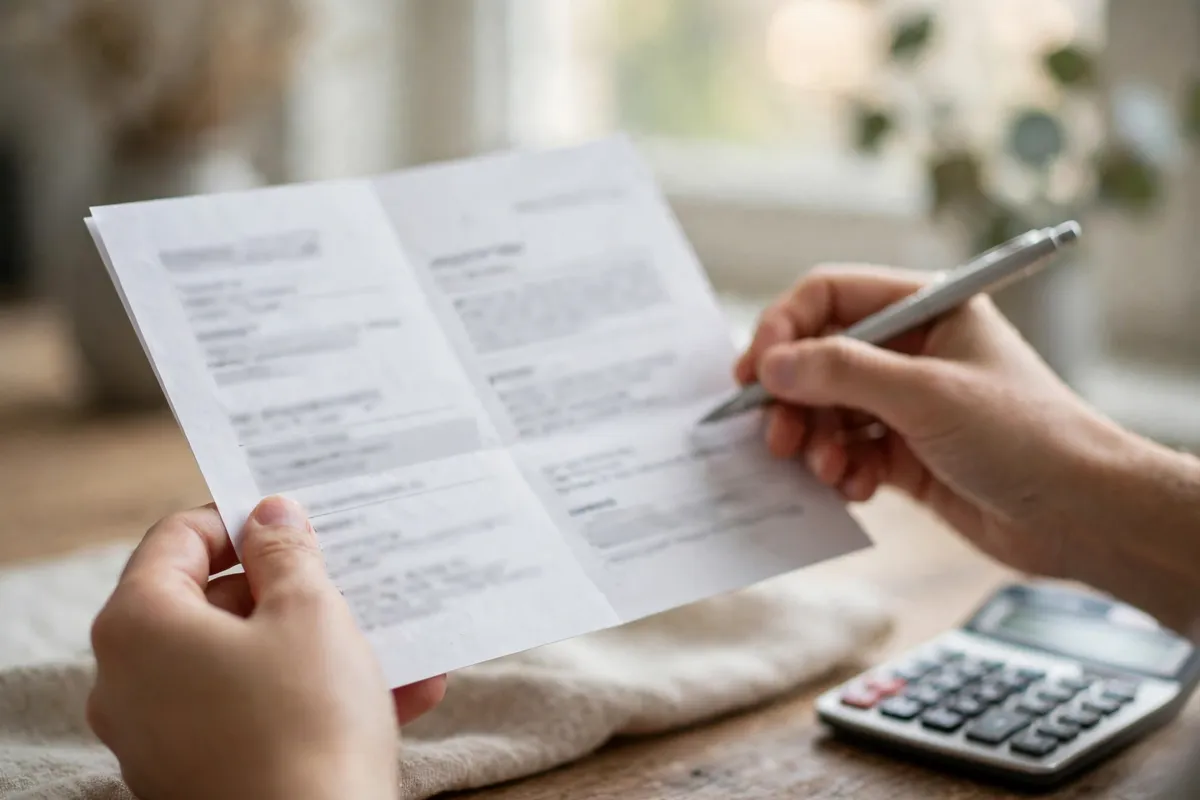
Once verified, the spreadsheet becomes far more useful than the PDF. Sort spending by merchant to spot subscriptions you forgot, filter by month to compare travel costs, and add a simple category column for groceries, dining, transport, and household bills. For expense claims, filter to work-related rows and attach the original locked PDF as proof, since the spreadsheet alone is not an official document. For tax or business records, keep the locked PDF and the verified spreadsheet together in a private folder, named by year and month, so you can find them without searching through email. If you share the spreadsheet with an accountant, send it through a secure link rather than plain email, and never include the PDF password in the same message as the file. A password sent alongside its file defeats the whole point of locking it.
Frequently asked questions
Can I convert a password-protected AMEX Middle East statement PDF without the password?
No. The password is part of the file's encryption, and a legitimate converter cannot read the transactions until the owner unlocks it. If you lost the password, recover it through the issuer's official channels rather than using a password-cracking tool, which can damage the file and put your data at risk.
What should I do if the password I have does not work?
Check capital letters, check for extra spaces when copying from an email, and try the password on the original file rather than a renamed copy. If it still fails, contact the issuer through its app or secure message center and ask how the statement password is set for your account, instead of guessing many times.
Is it safe to keep an unlocked copy of my statement?
Only briefly, on a private device, and only for the conversion itself. Delete the unlocked copy once the spreadsheet is verified, and keep the original locked PDF as your long-term record. An unlocked statement left in downloads or email is a needless risk.
Will the Excel file show all my transactions?
It should show every transaction row from the PDF, including purchases, payments, fees, and credits. Always compare row counts and totals against the PDF before using the spreadsheet for claims or tax work, since layout quirks can occasionally merge two rows.
For background, see the AMEX Middle East bank page, our password removal guide, and how to convert a bank statement PDF to Excel.
Your locked statement is only a few careful steps away from a usable spreadsheet. Convert your AMEX Middle East statement PDF to Excel once it is unlocked, verify the totals, and keep the locked original safe for your records.